Inspect support bundles
You can use the Vendor Portal to get a visual analysis of customer support bundles and use the file inspector to drill down into the details and logs files. Use this information to get insights and help troubleshoot your customer issues.
You can also inspect a bundle locally with sbctl, which lets you run kubectl commands against the state of the cluster when the bundle was collected. See Inspect a support bundle locally with sbctl.
Inspect a support bundle in the Vendor Portal
To inspect a support bundle:
-
In the Vendor Portal, go to the Troubleshoot page and click Add support bundle > Upload a support bundle.
-
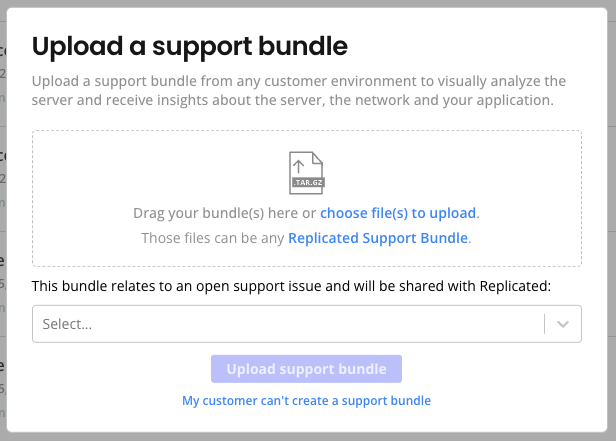
In the Upload a support bundle dialog, drag and drop or use the file selector to upload a support bundle file to the Vendor Portal.
-
(Optional) If the support bundle relates to an open support issue, select the support issue from the dropdown to share the bundle with Replicated.
-
Click Upload support bundle.
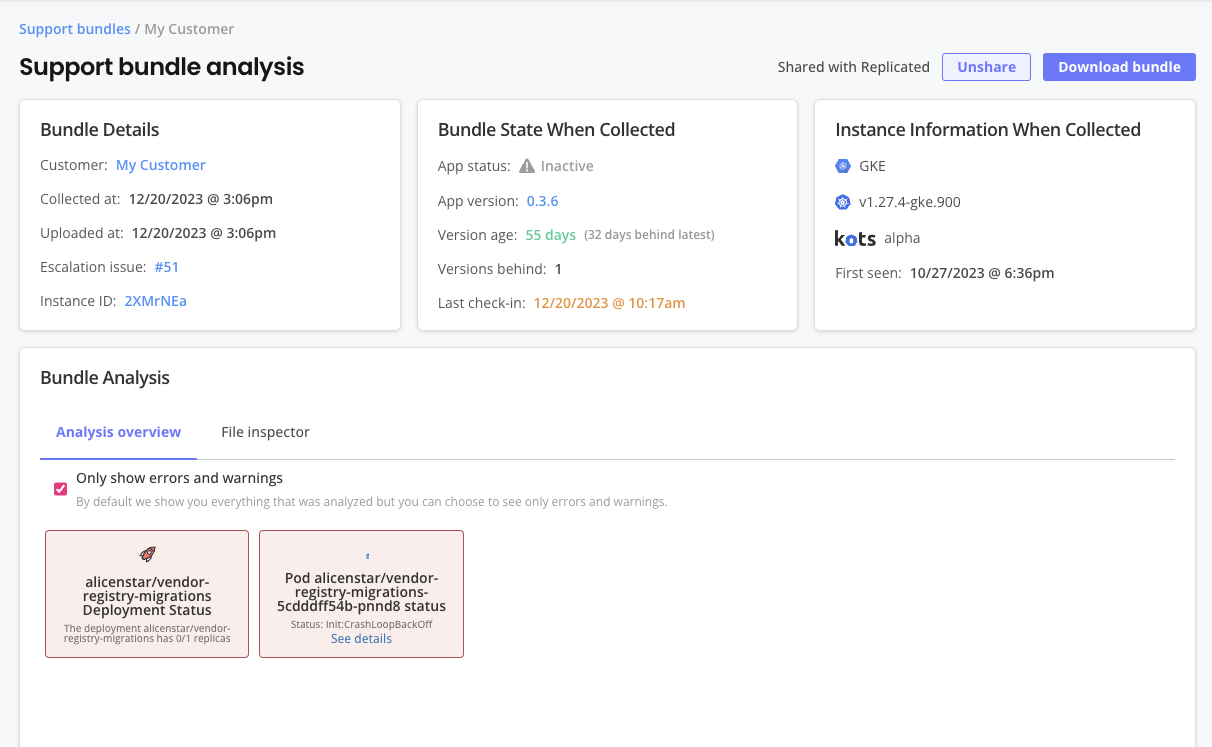
The Support bundle analysis page opens. The Support bundle analysis page includes information about the bundle, any available instance reporting data from the point in time when the bundle was collected, an analysis overview that can be filtered to show errors and warnings, and a file inspector.
-
On the File inspector tab, select any files from the directory tree to inspect the details of any files included in the support bundle, such as log files.
-
(Optional) Click Download bundle to download the bundle. This can be helpful if you want to access the bundle from another system or if other team members want to access the bundle and use other tools to examine the files.
-
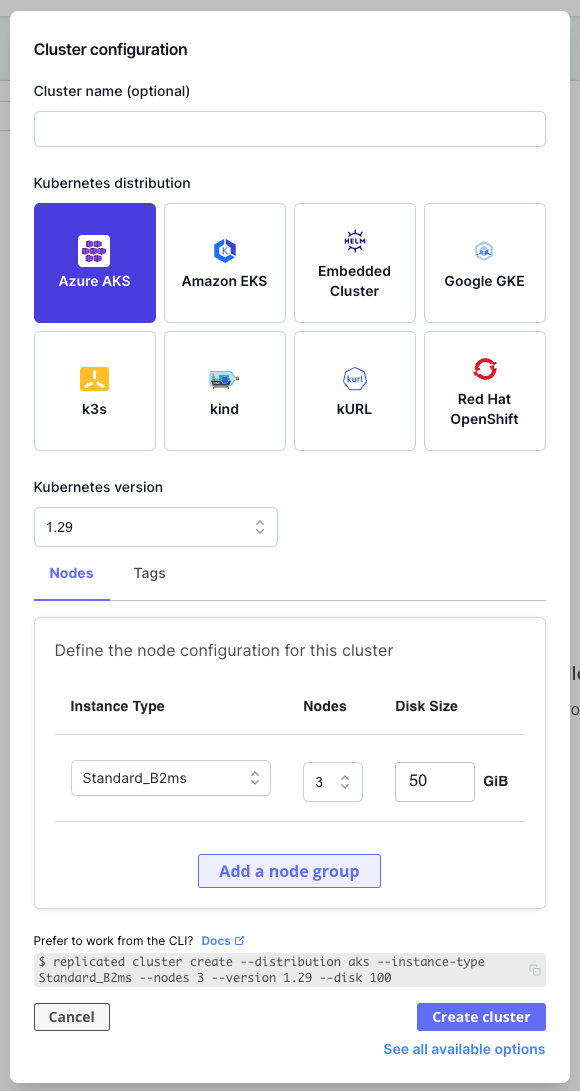
(Optional) Navigate back to the Troubleshoot page and click Create infrastructure to provision a customer-representative environment for troubleshooting with Replicated Compatibility Matrix. For more information about creating environments with Compatibility Matrix, see Create and Manage Environments with CMX.
-
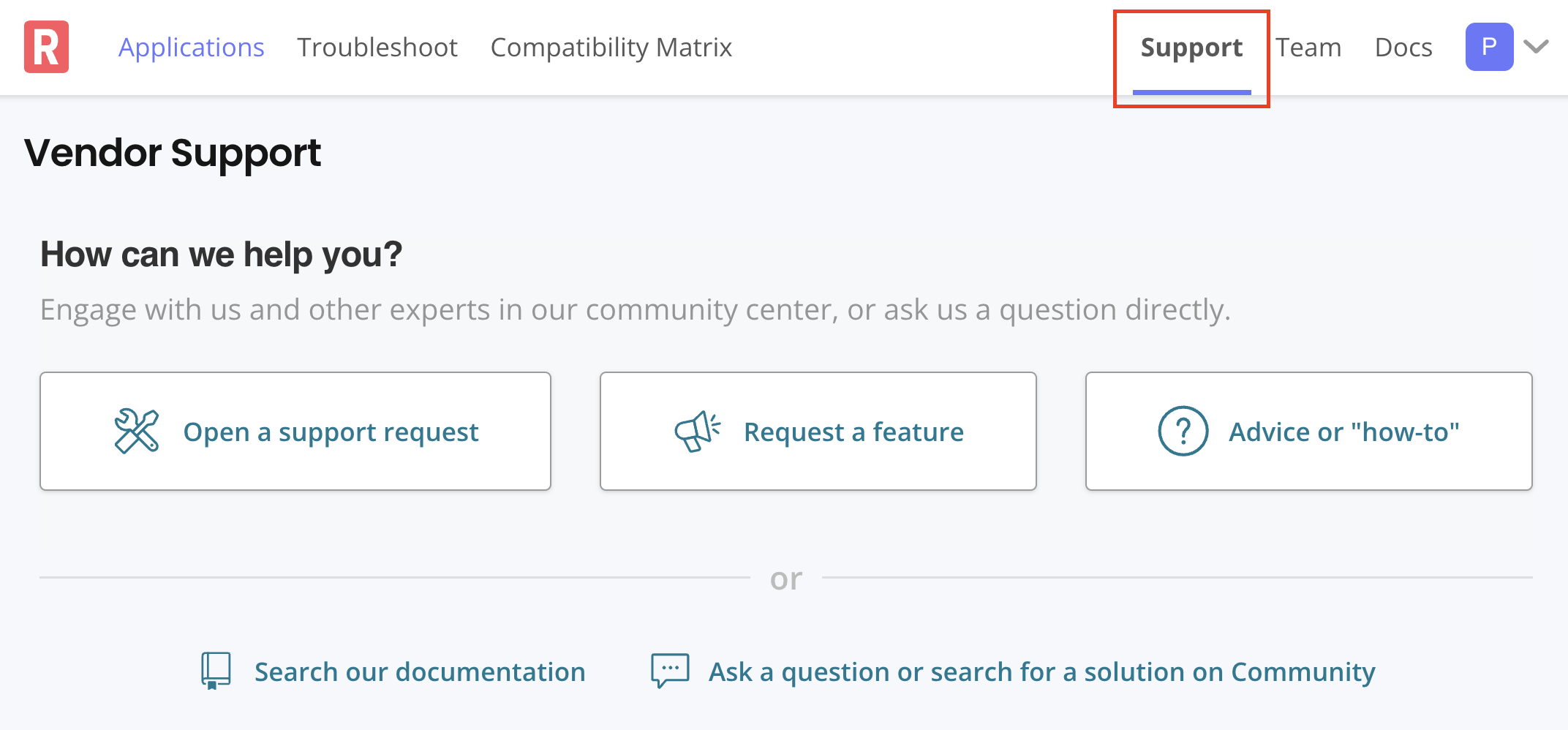
If you cannot resolve your customer's issue and need to submit a support request, go to the Support page and click Open a support request. For more information, see Submit a Support Request.
noteThe Share with Replicated button on the support bundle analysis page does not open a support request. You might be directed to use the Share with Replicated option when you are already interacting with a Replicated team member.
Inspect a support bundle locally with sbctl
If you are comfortable working in a Kubernetes cluster, sbctl can be a fast way to answer questions about a bundle using commands you already know. sbctl serves a support bundle through a local Kubernetes API server, so kubectl returns the state of the cluster at the moment the bundle was collected. It is also a good way to run the same checks across several bundles from a script.
sbctl is an open source command-line tool that is maintained by Replicated. It is not part of the Replicated platform, and you install and run it yourself. To install sbctl, see Install sbctl. For the source, see the sbctl repository in GitHub.
Open a bundle
The sbctl shell command starts the local API server, opens a shell with KUBECONFIG already set, and cleans both up when you exit. It accepts a bundle archive, an extracted bundle directory, or a Vendor Portal URL:
sbctl shell ./support-bundle-2026-09-16T14_22_37.tar.gz
Run kubectl commands at the prompt, then press Ctrl+D or run exit to stop the API server and delete the generated kubeconfig.
To run a single command and exit instead of opening a shell, which is useful in scripts, pass it with -c:
sbctl shell -c "kubectl get pods --all-namespaces" ./support-bundle.tar.gz
To start the API server without a shell, use sbctl serve. It prints an export KUBECONFIG= line to run in any terminal you want to point at the bundle, and runs until you interrupt it.
Open a bundle from the Vendor Portal
For a bundle that is already uploaded, pass its Vendor Portal URL instead of downloading it by hand. sbctl fetches the bundle, extracts it to a temporary directory, and removes it on exit:
sbctl shell https://vendor.replicated.com/troubleshoot/analyze/BUNDLE_SLUG
Use the URL of the Support bundle analysis page itself. A URL from the File inspector tab points at a file inside the bundle, and sbctl cannot resolve a bundle from it.
Fetching a bundle by URL requires a Vendor API token with the kots/app/[:appid]/supportbundle/read RBAC policy. For more information about tokens, see Using Vendor API v3. If you already use the Replicated CLI, sbctl reads the token from your default profile in ~/.replicated/config.yaml, or from the profile you name with --profile. Otherwise, set SBCTL_TOKEN in your environment. A bundle that is already on disk requires no token.
To download a bundle without opening a shell, use sbctl download. It writes support-bundle.tgz to the current directory.
Limitations
A support bundle is a snapshot of collected files rather than a running cluster, which means:
- Read commands such as
kubectl get,kubectl describe, andkubectl logswork. Commands that change or reach into the cluster, includingkubectl apply,kubectl delete,kubectl exec, andkubectl port-forward, do not. - You can only see resources that the support bundle spec collected. A resource type that no collector gathered is absent rather than empty, so confirm what the spec collects before concluding that something was not running. For more information, see Add and customize collectors.
- A bundle that contains no cluster resources, such as one collected with host collectors only, has nothing for the API server to serve. sbctl reports that none were found and opens a shell in the extracted bundle directory so that you can inspect the files directly.
Delete a support bundle
You can delete a support bundle that has been uploaded to the Vendor Portal. Deleting a bundle permanently removes it and its analysis from the Vendor Portal.
Delete a bundle when it contains sensitive data that should not be retained, such as customer credentials, secrets, or other confidential information that was captured in collected logs or files.
Deleting a support bundle is permanent and cannot be undone. If the bundle was shared with Replicated as part of a support issue, deleting it removes your uploaded copy from the Vendor Portal.
Delete from the Vendor Portal
-
In the Vendor Portal, go to the Troubleshoot page.
-
In the row for the support bundle that you want to delete, click the options (three-dot) menu, then click Delete.
-
In the Delete bundle dialog, click Delete bundle to confirm.
Delete with the Vendor API
To delete a bundle programmatically, such as for bulk cleanup or as part of an automated data-retention workflow, use the deleteSupportBundle endpoint. This requires a Vendor API token with the team/support-issues/write RBAC policy and the ID of the bundle you want to delete. For more information about API tokens, see Using Vendor API v3.